
To remove background music from a video while keeping speech, you need to separate the sounds in its audio track. Muting the video removes the voice too. Music Remover separates the mixed soundtrack into voice and background audio, then lets you download the tracks or a video using the separated voice.
What happens to a mixed soundtrack?
A recording may contain dialogue, singing, music, and other sounds at the same time. If those sounds have already been mixed into one soundtrack, turning down its volume turns down everything. There is no original music-only volume control to adjust.
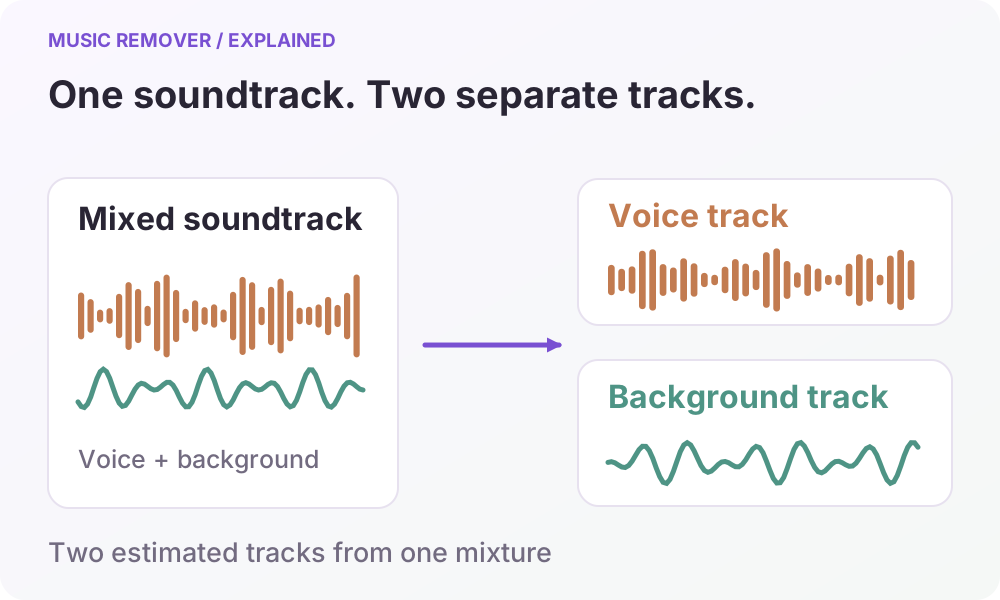
Voice separation estimates two new tracks from that mixture: a voice track and a background track. These are processing results, rather than the original recording session's separate files. The voice may include speech or singing. The background track can contain music and other sounds; it is not a guarantee of music alone.
How do you remove background music from a video?
- Choose your source. Select a supported video file, or enter a direct public HTTPS link to the media file. A streaming watch page is not a direct media file.
- Check the original. Listen before processing. Note a few words and transitions you want to preserve, so you have a useful comparison afterward.
- Sign in and choose an audio format. Separated audio can be downloaded as AAC, MP3, WAV, M4A, FLAC. Choose a format your next editing tool accepts.
- Start the task. The processing service separates the soundtrack. For a video result, the separated voice is then combined with the source video content.
- Preview and download. Listen to the voice and background tracks. Download the voice audio for another edit, or choose the finished MP4 if you want the picture and separated voice together.
Keep the page open until the upload finishes and the task is queued. Voice separation and the additional video assembly stage then continue in the background even if you close the page. Return to My processed files to check progress and download results before the temporary links expire. A downloaded audio track and a completed video serve different needs, so choose the result you will actually use.
Is music separation the same as noise removal?
Music separation aims to distinguish voice from background audio. It is not a dedicated treatment for wind, hiss, room echo, or microphone distortion. Those sounds may remain with the voice or appear in the background track. Lowering unwanted sound in one place does not mean that every unwanted sound has been removed.
The result can also contain residual music or changes to the voice, especially where sounds overlap. Music Remover does not guarantee perfect isolation or preservation of every sound effect. If a word sounds damaged in the processed version, keep the original available and decide whether the result is suitable for that section.
What should you listen for before downloading?
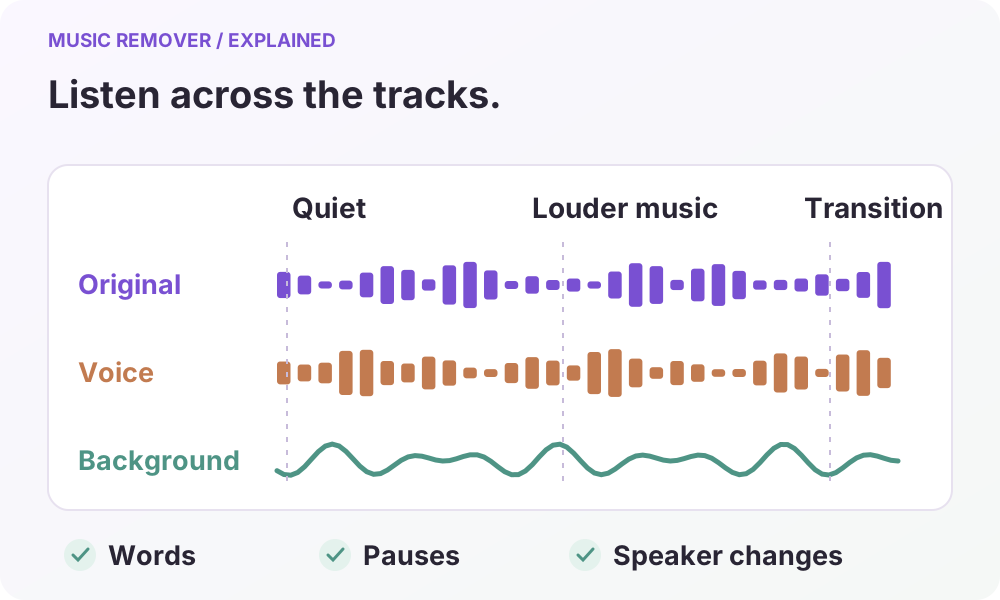
Compare a quiet passage, a section with louder music, and a transition between speakers. Check whether words remain understandable, pauses sound natural, and the voice changes when the music becomes more prominent. Listen to the background track too: it can help reveal whether parts of the speech were separated into the wrong track.
The homepage's listening example uses synthesized speech and a synthesized music bed. It demonstrates how separate tracks can be compared; it is not a live processing result or an accuracy benchmark.
Download the result you want to keep while its temporary link is available. Keep your source recording as well, and use only media you have permission to submit and edit.
Read the privacy policy for processing and retention details, or contact support about a task.