
01
Upload & choose a scene
Upload video or audio, or paste a direct media link. Choose general audio or music, plus an export format.
Reworking an existing clip? Separate its original speech and dialogue from the music. Download a voice-only video or audio track, then add a new soundtrack in your editor.
or choose a file from your device
MP4, MOV, MP3, WAV & M4A · Up to 2 GBYour media is processed by a third-party model. Uploaded files are available for 30 days, and processed results can be downloaded for 30 days after generation. Save the files you need before they expire. Privacy policy
A real result from Music Remover: a drama scene with a soft score. Tick a track to hear the dialogue and the music separately.
Clip from the Bitter Sea trailer © Fateme Ahmadi vimeo.com · CC BY-SA 3.0. Trimmed to 30 seconds; audio separated by Music Remover, no other editing.
Upload the source video, separate its soundtrack and bring the original speech into your editing workflow.
Upload video or audio, or paste a direct media link. Choose general audio or music, plus an export format.
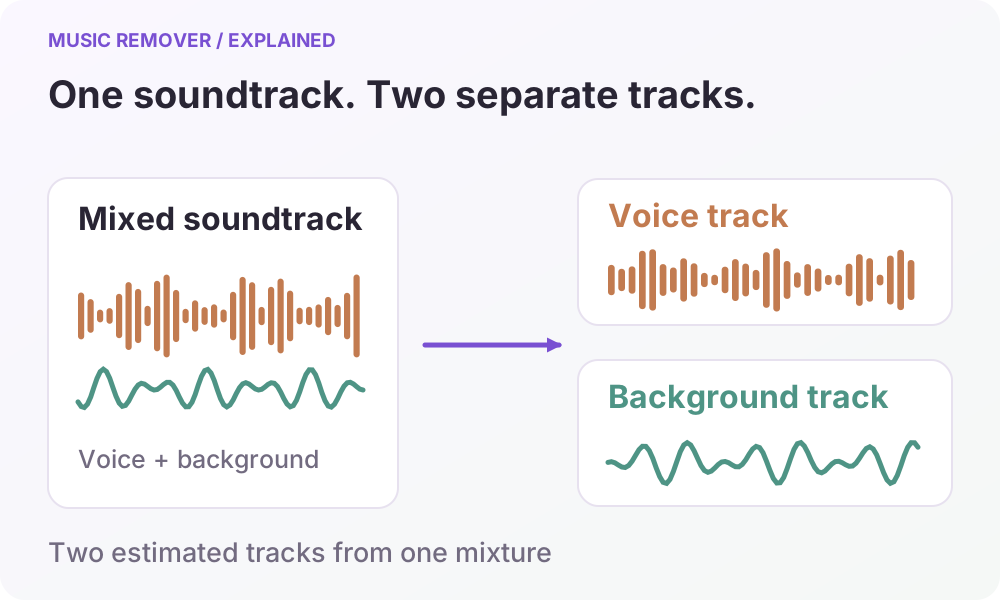
Separate voice and background into two tracks. Preview either or both against the video, and adjust each volume before downloading.
Download separate audio or an MP4 with your selected tracks and volumes. Save the files within 30 days and continue editing in your video editor.
Start with an existing clip and remove its music before re-cutting, changing the soundtrack or preparing captions and dubbing.
Keep the original dialogue from a reference clip while separating its background music. Download a voice-only MP4, then re-cut the footage or rebuild its structure in your editor with a new soundtrack.
Read the workflowExtract the original narration from a product demo, tutorial or talking-head clip. Keep the spoken content for a new cut, then add music that fits the pacing of the next video.
Read the workflowSeparate speech from a clip’s music and export it to your captioning tool. Use the transcript to plan cuts or rebuild subtitles, then review the words against the original video.
Read the workflowExtract the original dialogue for transcription and translation. Create a new voiceover in your dubbing tool, then assemble the localized video in your editor with the music and effects you choose.
Read the workflowChoose AAC, MP3, WAV, M4A, FLAC for the audio tracks. Video inputs also produce an MP4 with the voice soundtrack.
Separate voice and background into two tracks. Preview each track or combine them at your chosen volumes. Video inputs support MP4 downloads with the selected audio.
| Input type | Supported formats | Available downloads |
|---|---|---|
| Video files | MP4, MOV, MKV, AVI, FLV, WMV, TS | MP4 video with voice only, plus separate audio tracks |
| Audio files | MP3, WAV, M4A, AAC, FLAC | Voice and background tracks; AAC, MP3, WAV, M4A, FLAC |
Audio and Music scenes separate voice and background into two tracks. For videos, preview those tracks against a muted picture. Select either or both tracks, set their volumes, and download the resulting video.
Learn how to choose your input, review the output and save the files you need.
Choose the right source scene, follow the workflow and learn what to listen for.
Read the illustrated guide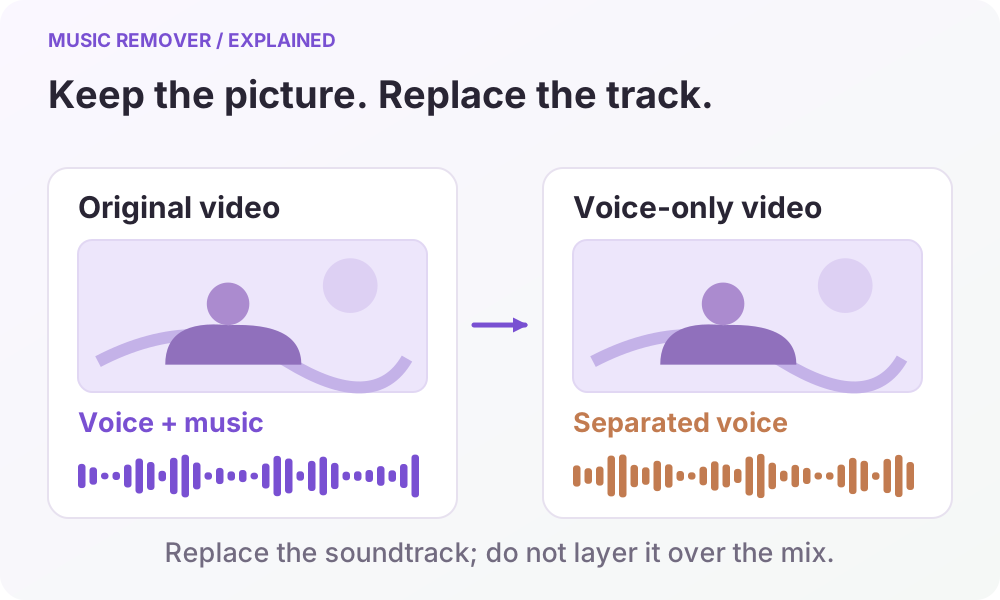
See how picture and sound fit together, and check your MP4 before using it.
Read the illustrated guide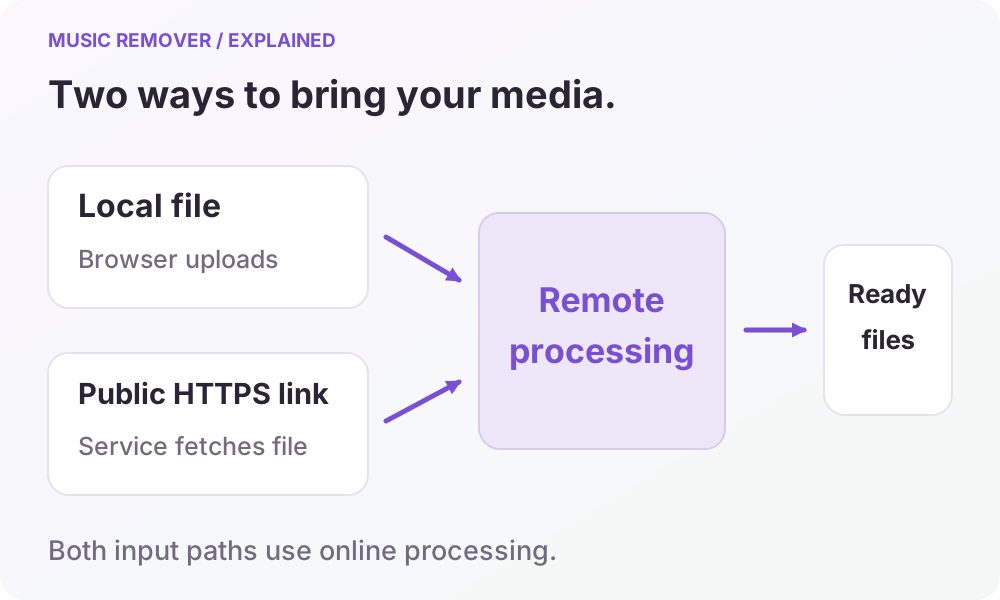
Compare file and link inputs, supported formats and temporary download windows.
Read the illustrated guideChoose voice audio or a finished video, and learn what separation can preserve.
Read the illustrated guide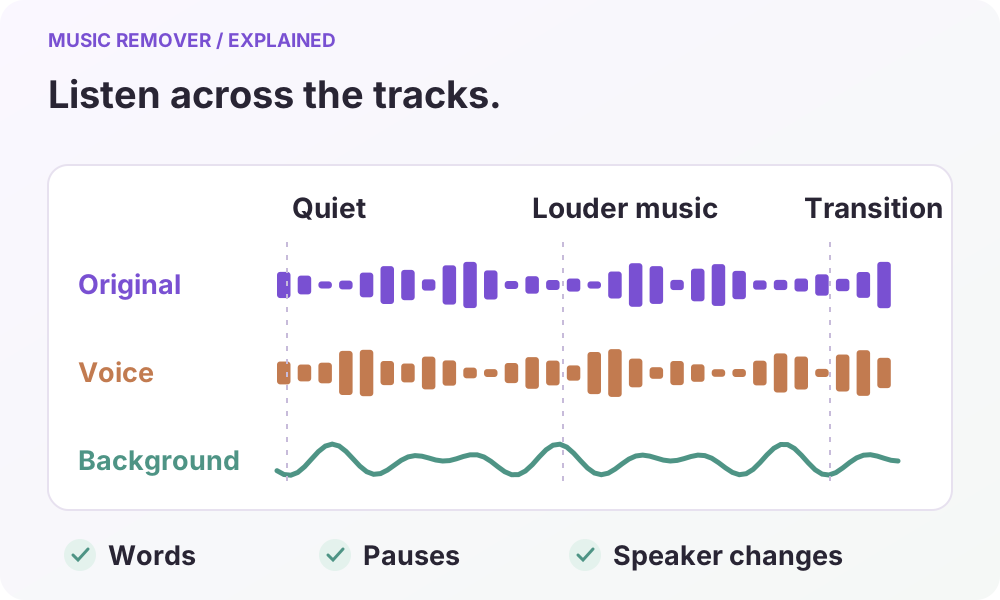
A workflow for interviews, podcasts and voiceovers without a video file.
Read the illustrated guideFollow the upload, track selection, volume and download controls step by step.
Read the illustrated guideUpload a video, sign in and choose a source scene and export format. The background job separates its tracks and replaces the video soundtrack with voice only. Preview and download the MP4 and audio tracks from this page or My processed files.
Yes. Voice separation is designed to preserve speech and vocals while separating the background track. Results depend on the original recording: overlapping voices, loud music, and distortion can leave artifacts.
Yes. Upload MP3, WAV, M4A, AAC or FLAC audio, or common video formats such as MP4, MOV and MKV, up to 2 GB. Export voice and background tracks as AAC, MP3, WAV, M4A, FLAC.
The processing workflow replaces the audio track while retaining the original video content. The output is an MP4 file. Depending on the source format, the media service may re-encode the video.
Time depends on file length and service load. Keep the page open until the upload finishes and the task is queued. Voice separation and video assembly then continue in the background even if you close the page. Return to My processed files to check progress and download results before the temporary links expire, 30 days after generation.
The link option supports direct HTTPS links to a video or audio file. It does not download media from YouTube or other streaming watch pages. Upload a file you have permission to use instead.
Your media is processed by a third-party model. An account is required to start processing, and task history is limited to its owner. Uploaded files are available for 30 days; processed results can be downloaded for 30 days after generation. See the privacy policy for details about file handling and temporary links.
Use Audio for speech recordings and Music for songs: both return voice and background tracks. Separation is not a dedicated wind, hiss or echo remover; results vary with the source.
Keep the original speech, remove the background music and download a video ready for re-editing. Add your next soundtrack in your video editor.
Remove music from a videoNo software to install