
A video has picture content and an audio soundtrack. Removing music from the soundtrack does not require removing the picture, but keeping the voice takes more than muting. Music Remover separates voice from background audio, then uses the separated voice in place of the original soundtrack for an MP4 video export.
Why does the audio need to be replaced?
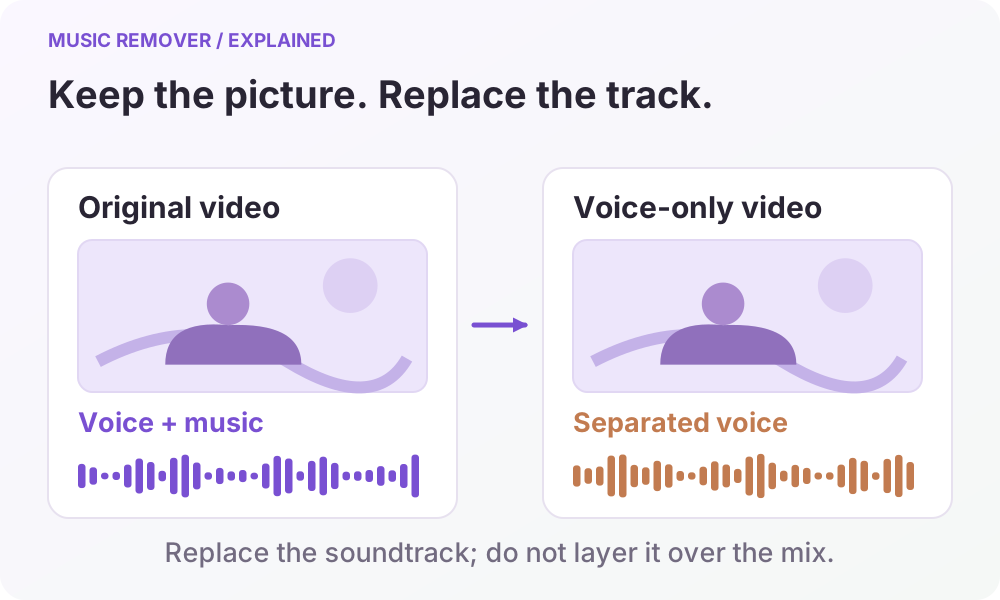
Suppose a clip contains someone speaking over music. Its original soundtrack includes both. If you add the separated voice on top of that soundtrack, the music is still present and the speech may play twice. To make the voice-only version, the new voice track needs to replace the original audio rather than be mixed with it.
This replacement happens after separation. The processing service uses the source video's picture content and the new voice audio to assemble the result. That extra step is why a video task includes both separation and video assembly; an audio-only task does not need a picture to be assembled.
Which download should you choose?
| Your next step | Result to download |
|---|---|
| Use the picture and separated voice together | Finished MP4 video |
| Adjust the voice in another editing project | Voice audio in AAC, MP3, WAV, M4A, FLAC |
| Examine the sounds taken out of the voice track | Separate background audio |
The chosen audio export format applies to the separated audio downloads. The assembled video is an MP4. Choosing WAV for a voice download does not change the finished video's container to WAV, and it does not restore detail lost in the original recording.
If your source was already a separate picture file and voice recording, an editor may give you more direct control. This workflow is useful when the voice and music have been mixed together and you need to separate them before replacing the soundtrack.
Does the video picture stay exactly the same?
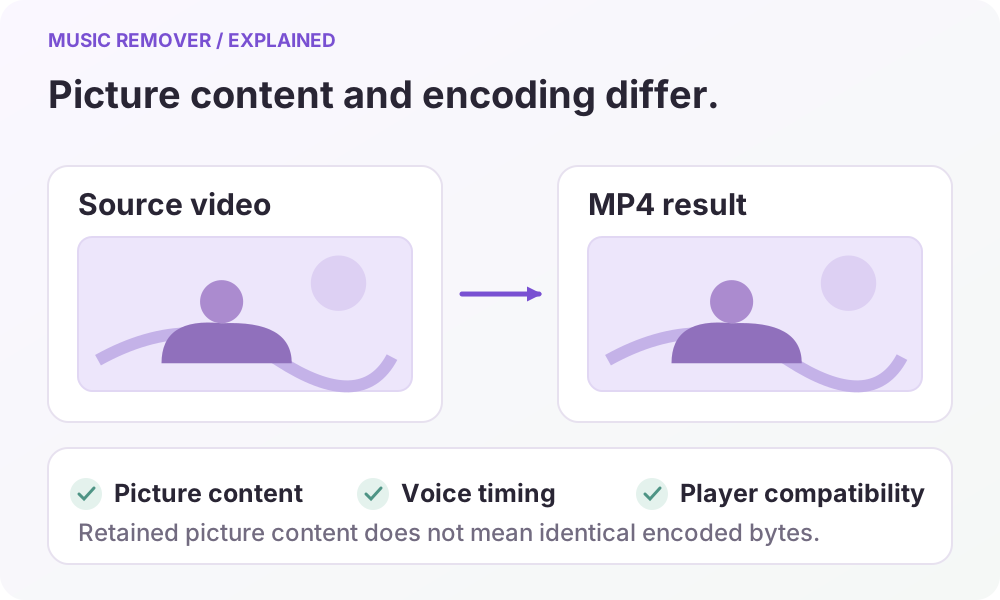
The workflow retains the source picture content rather than creating a new scene. That is different from promising a byte-for-byte copy of the video stream. Depending on the source format and processing, the service may re-encode the media when making the MP4.
Do not assume lossless export, unchanged encoding, or identical file size. Keep the original video for later editing, and inspect the downloaded MP4 before using it in a final project. If you need a specific codec or other delivery settings, check the resulting file in the tool where you will use it instead of assuming those settings from the MP4 extension alone.
How should you check a voice-only video?
- Play the beginning and ending, and check that the part of the video you need is present.
- Watch a few moments where a person is speaking. Check that the voice timing fits the visible action.
- Listen where the music was loud or overlapped the voice. Notice missing words, residual music, or a changed voice sound.
- Try the downloaded MP4 in your intended player or editor before relying on it.
“Voice only” describes the track selected for assembly. It is not a promise that every trace of music or every unwanted sound has disappeared. Separation can change sound effects or leave background elements with the voice. Preview the result and decide whether it fits your purpose.
The homepage demo uses synthesized speech and music to explain track comparison. It is not a test of the video export. Download important results while their temporary links work, and keep the original alongside them.
Read the privacy policy for processing and retention details, or contact support about a task.